Most budgets don't fail because the plan is wrong. They fail because people stop logging. You buy a coffee, mean to add it later, forget, and three days on your numbers no longer match your bank. After that it's easy to give up.
Daily Spending Planner now has two features that do most of the typing for you. Apple Pay auto-logging records a purchase the moment you tap your phone to pay. AI receipt scanning turns a photo of a receipt, or a screenshot from your banking app, into a list of expenses. Here's how each one works and how to set it up.
Apple Pay auto-logging
iPhone's Shortcuts app can run an automation whenever you pay with a card in Wallet. Daily Spending Planner adds an action to Shortcuts called Log Wallet Transaction. Connect the two and every Apple Pay tap sends the amount and merchant to the app in the background. The app doesn't open, and you don't have to do anything at the till.
The purchase waits in Pending Transactions, and a badge on the Home screen shows how many are waiting. Open it when you have a moment, pick a category, and it's logged. You never type the amount or the shop name.
No bank login needed. Many apps track spending by connecting to your bank account. This one doesn't. The automation uses Apple's own Wallet trigger on your iPhone, so you never share bank credentials and the purchase details go straight from Shortcuts to the app.
How to set it up (iOS 17, 18 and 26)
It takes about a minute. In the app, go to More → Apple Pay Capture. The guide there shows screenshots for your iOS version. In short:
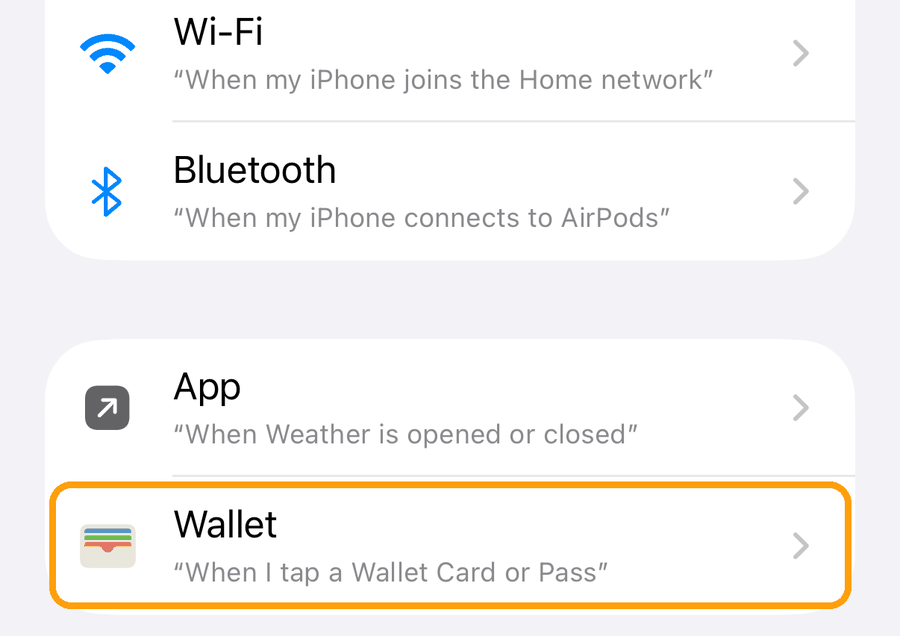
- Tap Open Shortcuts to start a new automation. Scroll down and choose Wallet (called Transaction on iOS 17 and 18).
- Keep Any Card, or pick only the cards you want to track. Choose Run Immediately, turn off Notify When Run if you see it, then tap Next.
- Tap Create New Shortcut (called New Blank Automation on iOS 17 and 18).
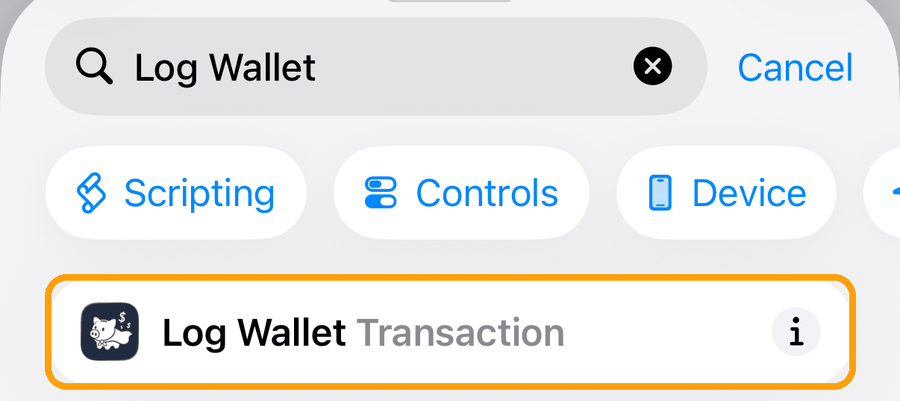
- In the search box, type "Log Wallet" and tap Log Wallet Transaction.
- Tap the blue Amount field. Above the keyboard, tap Shortcut Input, then tap it again and choose Amount. Do the same for Merchant, then tap Done.
On iOS 27
iOS 27 moved automations into regular shortcuts, so setup is shorter. You install a ready-made automation:
- In More → Apple Pay Capture, tap Install Automation, then Add Shortcut. Shortcuts will warn that the automation is turned off. That's expected, because shared automations always arrive switched off.
- Tap the new Log Wallet Transaction shortcut, then Edit.
- Tap › next to When Any Card is tapped, switch Automation on and Notify off, then go back to save.
If purchases don't show up
- Check that the automation is still set to Run Immediately (on iOS 27: that Automation is still on).
- Make sure Wallet can use mobile data: Settings → Apps → Wallet.
- The trigger only fires when you tap to pay with a card in Wallet. Payments with your physical card, or typing your card number online, won't appear. Scan the receipt or add those yourself.
Apple Pay auto-logging is free.
AI receipt scanning
A supermarket receipt might have twenty lines across groceries, household items and something for the kids. Logging it as one "Groceries – $84.20" entry hides where the money went. Typing each line yourself takes too long. Receipt scanning does it for you.
How it works
- Go to More → Scan Receipt, or press and slide up on the + button.
- Take a photo of the receipt, or pick a receipt or banking-app screenshot from your library.
- AI reads every line: item name, quantity, price and date. It suggests a category from your own category list, and applies tax and discounts so the items add up to the printed total. If they don't, the app tells you so you can check.
- Review the list. Nothing is added until you approve it.
Edit before saving
The review screen is where you turn a receipt into a useful record. Select several items at once to:
- Change the category or tag, for example to move all cleaning products to "Household".
- Merge small items into one line, like five snacks becoming one "Snacks" entry.
- Split a line, or rename items to something you'll recognise later.
- Skip items you don't want to log, like something you bought for a friend who paid you back.
Then tap Add. The button shows how many transactions you're adding and their total.
Bank screenshots: catch up in seconds
Haven't logged anything in a week? Take a screenshot of the transaction list in your banking or Wallet app and scan it. Each row becomes its own expense with its own date, so you can fill a gap in one go instead of typing ten entries.
Foreign receipts
Scanned a receipt from a trip? The app reads its currency and converts the amounts using built-in exchange rates. If it finds a currency it doesn't support, it asks you which one to use.
What happens to the photo? It's sent to our server and an AI model only to be read. We don't keep it, and we ask the AI provider not to store it either. Only the expenses you approve are saved, on your device like the rest of your data.
Receipt scanning is part of Premium.